> For the complete documentation index, see [llms.txt](https://docs.decisionrules.io/doc/llms.txt). Markdown versions of documentation pages are available by appending `.md` to page URLs; this page is available as [Markdown](https://docs.decisionrules.io/doc/access/cloud/sign-up-and-login-on-cloud.md).
# Sign Up & Login on Cloud
To start using DecisionRules, you’ll first need to create an account. Signing up is simple and flexible. You can use your email, a Microsoft or Google account, or log in through [your organization with SSO](/doc/organization/settings.md#single-sign-on-sso). Just choose the option that suits you best, and you’ll be up and running in no time.
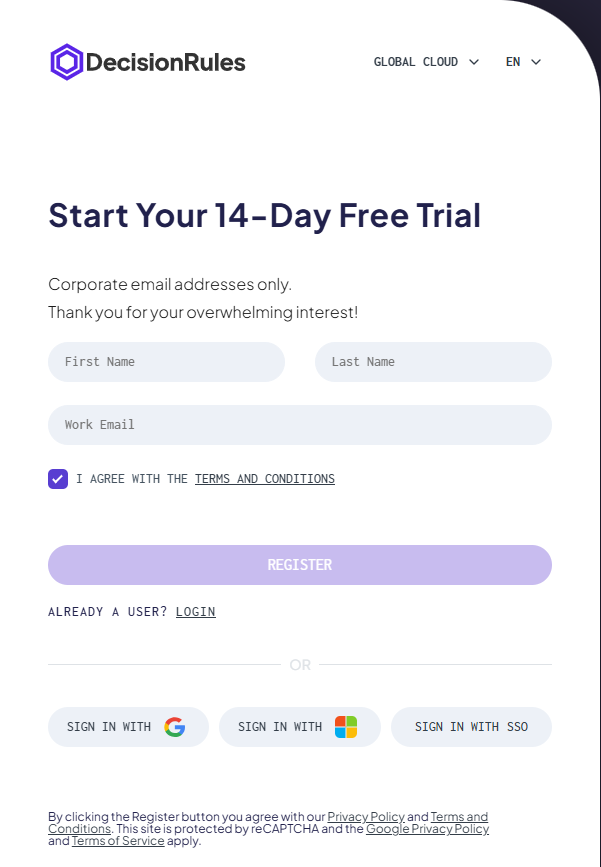
Sign Up Page
## Sign Up – Creating a New Account
Users can register using one of three sign-up methods: **email and password**, **Microsoft or Google account**, or **Single Sign-On (SSO)**. Each method has a slightly different flow.
### **Sign Up with Credentials**
When choosing the **Email & Password** option, you are prompted to fill out a short registration form. After submitting the form, a confirmation screen appears, letting you know that a verification email has been sent to your provided address.
To complete the registration:
1. Open inbox and click the verification link.
2. You are redirected to a secure page to **set their account password**.
3. Once the password is set, you are logged in and redirected into the app.
### **Sign Up with Microsoft or Google**
When signing up via a **provider**, a pop-up window appears for you to authenticate with your Microsoft or Google account.
After successful authentication:
1. You are redirected to a short onboarding screen.
2. This screen asks for a few additional details to complete your profile.
3. After submitting the form, you are taken directly into the app.
### **Sign Up with SSO**
Users from organizations with **Single Sign-On (SSO)** configured can register using their company credentials.
{% hint style="info" %}
For more information about SSO see dedicated page [here](/doc/access/cloud/single-sign-on-sso.md).
{% endhint %}
## Login – Accessing Your Account
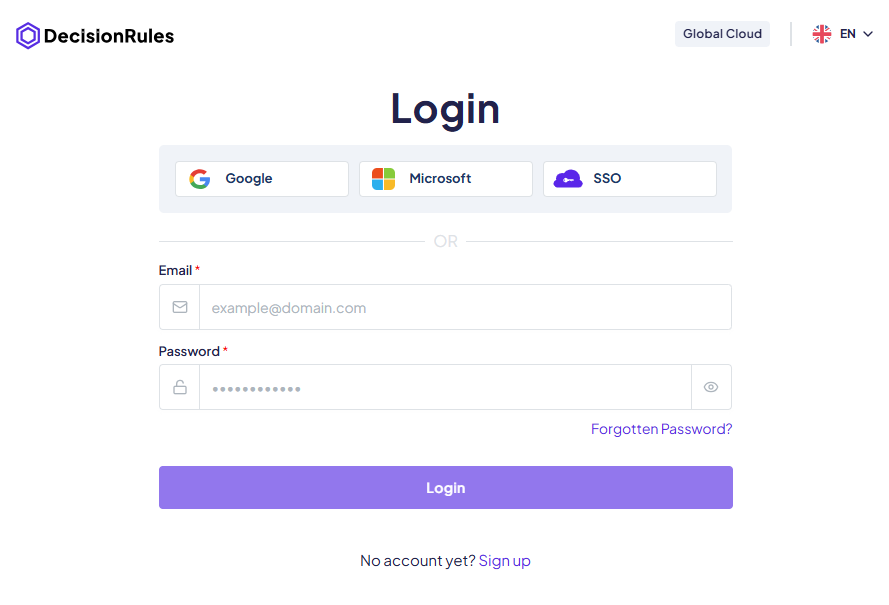
Existing users can log in using the same methods they registered with:
* **Email & Password** – Enter the credentials you set during registration.
* **Microsoft or Google** – Use your linked provider account to log in.
* **SSO** – Choose your organization’s SSO option and follow the redirect.
{% hint style="info" %}
When signing in with **Email & Password**, you may be asked for a code from your authenticator app before you can access the application. Google, Microsoft, and SSO sign-ins do not request an additional DecisionRules 2FA code. See [Two-factor authentication](https://docs.decisionrules.io/doc/profile/two-factor-authentication-2fa) for setup and help with a code.
{% endhint %}
{% hint style="info" %}
If an image CAPTCHA appears during login, registration, password setup, or recovery, enter the characters shown and submit the form again. If a new image appears after an unsuccessful attempt, use the characters from that image.
{% endhint %}
Once authenticated, you’ll be taken straight to your workspace.
Login Page
---
# Agent Instructions
This documentation is published with GitBook. GitBook is the documentation platform designed so that both humans and AI agents can read, navigate, and reason over technical content effectively. Learn more at gitbook.com.
## Querying This Documentation
If you need additional information that is not directly available in this page, you can query the documentation by asking a question.
Perform an HTTP GET request on the following URL with the `ask` and `goal` query parameters:
```
GET https://docs.decisionrules.io/doc/access/cloud/sign-up-and-login-on-cloud.md?ask=&goal=
```
`ask` is the immediate question: it should be specific, self-contained, and written in natural language.
`goal` is what the user is ultimately trying to achieve, the reason they need the answer. Sharing it helps GitBook give you a better, more relevant answer. A goal is most helpful when it describes the outcome the user wants rather than restating the question. For example, with `ask=how do I create an API token`, a goal like `automate deployments from our CI pipeline` lets GitBook tailor the answer to that use case.
The response will contain a direct answer to the question and relevant excerpts and sources from the documentation.
Use this mechanism when the answer is not explicitly present in the current page, you need clarification or additional context, or you want to retrieve related documentation sections.