> For the complete documentation index, see [llms.txt](https://docs.decisionrules.io/doc/llms.txt). Markdown versions of documentation pages are available by appending `.md` to page URLs; this page is available as [Markdown](https://docs.decisionrules.io/doc/rules/common-rule-features/variables/rule-variables.md).
# Rule Variables
Rule variables simplify editing when working with values that appear multiple times across your rules.
**Rule variables work identically across all rule types** - Decision Tables, Decision Trees, and Scripting Rules - though the syntax for using them [varies by rule type](/doc/rules/common-rule-features/variables.md).
{% hint style="info" %}
Rule variables are version-specific. Each version of a rule maintains its own set of variables.
{% endhint %}
{% hint style="info" %}
In this guideline on how to create rule variables, you need to have knowledge of [Decision Table](/doc/rules/decision-table.md) and [Scripting Rule](/doc/rules/scripting-rule.md)
{% endhint %}
## **Creating and Managing Rule Variables**
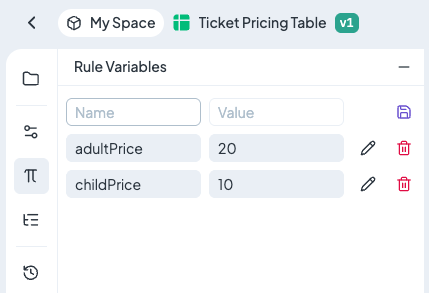
Rule Variables are managed in the **left panel** of the rule editor. Here you can add, edit, or delete variables.
#### **To create a new variable:**
1. Enter a **Name** (must be unique per rule).
2. Set a **Value** (number, text, or boolean).
3. Click the **Save** button or click **Enter.**
{% hint style="success" %}
Create variable names **without spaces and special symbols**, even though they are technically allowed.
{% endhint %}
#### **To edit a variable:**
1. Click the **Edit** button next to the variable.
2. Modify the value.
3. Click the **Save** button or click **Enter.**
{% hint style="warning" %}
Save your changes – otherwise, the changed value of the rule variable will not be updated.
{% endhint %}
#### **To delete a variable:**
Click the **Delete** button next to the variable.
### Supported Value Types
Rule Variables support the following data types:
#### Simple Values
```javascript
{ "output": [ 0.21, 18, 30, "EUR", "Prague", "Premium", true, false ] }
```
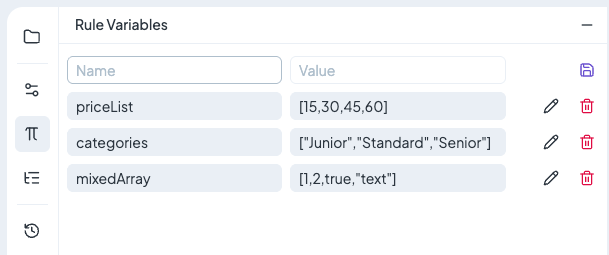
#### Arrays
```javascript
[
{ "output": [15, 30, 45, 60] }, // priceList
{ "output": ["Junior", "Standard", "Senior"] }, // categories
{ "output": [1, 2, true, "text"] } // mixedArray
]
```
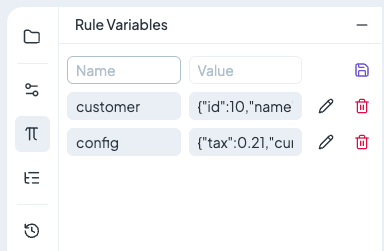
#### JSON Objects
```javascript
[
{ "output": { "id": 10, "name": "Peter", "occupation": "Developer" } },
{ "output": { "tax": 0.21, "currency": "EUR", "minAmount": 50 } }
]
```
{% hint style="warning" %}
While rule variables support complex objects and arrays, we **do not recommend using overly complicated rule variables**. Keep variables simple and focused.
{% endhint %}
### What Rule Variables CANNOT Do
Rule variables have important limitations that you should understand:
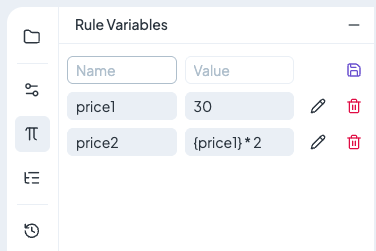
#### Reference other values
Rule variables are **static values only**. You cannot reference one variable from another or perform calculations between them.
```javascript
[
{ "output": 30},
{ "output": "{price1} * 2" } // Returns literal string, NOT 60
]
```
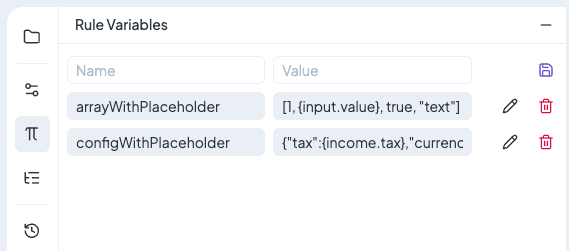
While you might think `{input.field}` syntax would work based on other features, **rule variables do NOT support input placeholders**. The curly braces are treated as literal text.
```javascript
[
{ "output": "[1, {input.value}, true, \"text\"]" },
{ "output": "{\"tax\":{income.tax},\"currency\":\"EUR\",\"minAmount\":50} }
]
```
#### Execute functions
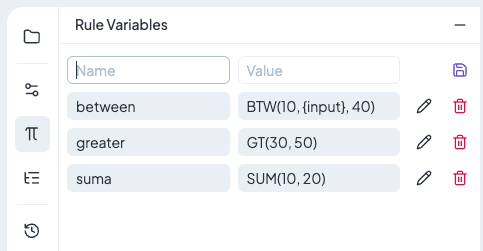
Functions stored in rule variables are **NOT executed** - they are returned as strings.
```javascript
[
{ "output": "BTW(10, {input}, 40)" },
{ "output": "GT(30, 50)" },
{ "output": "SUM(10, 20)" }
]
```
{% hint style="info" %}
If you need to use functions, write them directly in table.
{% endhint %}
## How to use Rule Variables
### **Rule Variables in Decision Tables**
There are several ways to use Rule Variables in Decision Table Designer:
#### **As the Column Condition**
In the column header, you can use the variable name directly.
#### As the Comparison Value
In the condition cell, you will see reference with the `A` prefix
**Both approaches achieve the same result** - comparing input data against your rule variable. Choose the style that makes your table more readable.
{% hint style="warning" %}
The column header is always the **left side** of the comparison. When you move a variable between the column header and the condition cell, you must **reverse the operator** to maintain the same logic.
{% endhint %}
#### As Part of the Function
Rule variables can be used inside functions and mathematical expressions, just like any other value (input fields, column values, or static numbers).
This is useful when you want to calculate output without hardcoding them in each cell. If value change, you only update the variable once.
{% hint style="info" %}
Exactly the same use of Rule Variable applies to Decision Tree.
{% endhint %}
### **Rule Variables in Scripting Rule**
Usage of Rule Variables in Scripting Rules is super easy. All values are stored in the `ruleVariables` object that is exposed in the script. You can use these stored values everywhere in the script (as inputs for your function or as inputs for `DR.solve()` function).
You can access your Rule Variables with the dot notation same as with input and output. To get the value of a rule variable, you write `ruleVariables.`
```javascript
const foo = ruleVariables.foo;
const bar = ruleVariables.bar;
output.Output = `Values of Rule Variables are: ${foo} and ${bar}`;
return output;
```
{% hint style="danger" %}
You cannot set `ruleVariables` from script itself or overwrite existing Rule Variables.
{% endhint %}
### Rule Variables in AI Agent
Prompt example with used rule variables:
```json
Evaluate a loan application using customer input data, rule variables, and company policy.
Input data:
- Customer age: {age}
- Monthly income: {monthlyIncome}
- Requested loan amount: {loanAmount}
Rule variables:
- Risk score: {variables.riskScore} //created rule variable
- Approval limit: {variables.approvalLimit} //created rule variable
Policy document:
{attachments.policy.txt}
```
---
# Agent Instructions
This documentation is published with GitBook. GitBook is the documentation platform designed so that both humans and AI agents can read, navigate, and reason over technical content effectively. Learn more at gitbook.com.
## Querying This Documentation
If you need additional information that is not directly available in this page, you can query the documentation by asking a question.
Perform an HTTP GET request on the following URL with the `ask` and `goal` query parameters:
```
GET https://docs.decisionrules.io/doc/rules/common-rule-features/variables/rule-variables.md?ask=&goal=
```
`ask` is the immediate question: it should be specific, self-contained, and written in natural language.
`goal` is what the user is ultimately trying to achieve, the reason they need the answer. Sharing it helps GitBook give you a better, more relevant answer. A goal is most helpful when it describes the outcome the user wants rather than restating the question. For example, with `ask=how do I create an API token`, a goal like `automate deployments from our CI pipeline` lets GitBook tailor the answer to that use case.
The response will contain a direct answer to the question and relevant excerpts and sources from the documentation.
Use this mechanism when the answer is not explicitly present in the current page, you need clarification or additional context, or you want to retrieve related documentation sections.