> For the complete documentation index, see [llms.txt](https://docs.decisionrules.io/doc/llms.txt). Markdown versions of documentation pages are available by appending `.md` to page URLs; this page is available as [Markdown](https://docs.decisionrules.io/doc/v1/decision-trees/import-and-export-rule/import-decision-tree.md).
# Import Decision Tree
### Importing a Rule
First, make sure you're logged in and navigate to the **Business Rules** category on the sidebar.
Importing a rule can have one of two meanings:
* [Importing a new Rule](#1.-importing-a-new-rule)
* [Importing a new version of an existing Rule](#2.-importing-a-new-version-of-an-existing-rule)
#### 1. Importing a new Rule
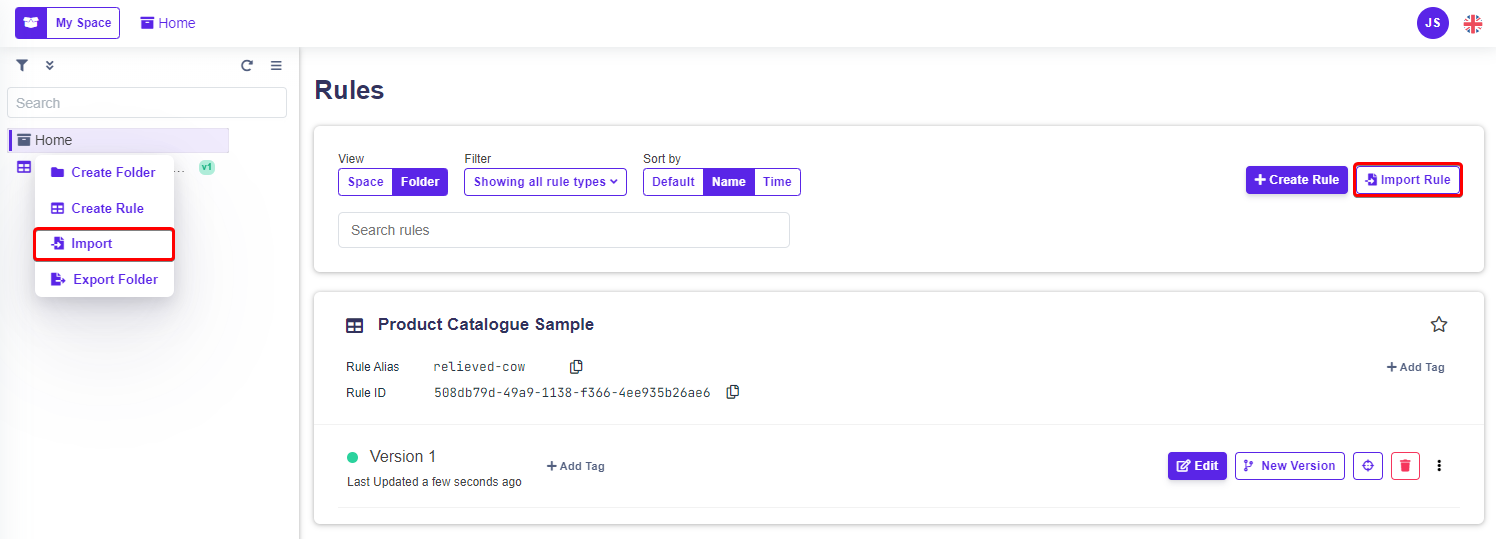
To import a new Rule navigate to the **Business Rules** category through the sidebar or select a folder you want the rule imported into in the **Folders** manager.
Click the **Import Rule** button on the top right. Shown in the image below.
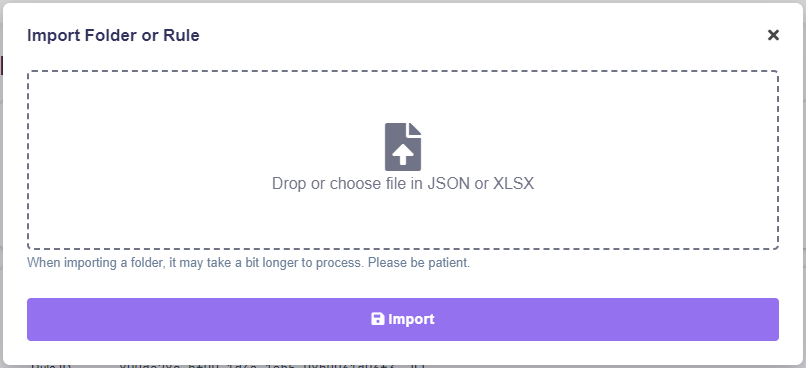
You will be prompted to drop or choose a file on your system containing the rule.
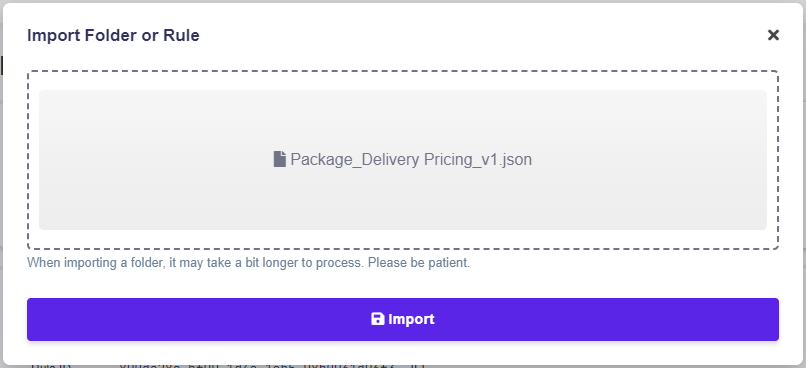
Drag and drop your rule file into the dashed area or click within it to open a File Explorer. For Decision Trees, the rule file can only have the format of JSON.
Once your rule file has been selected, click the **Import** button.
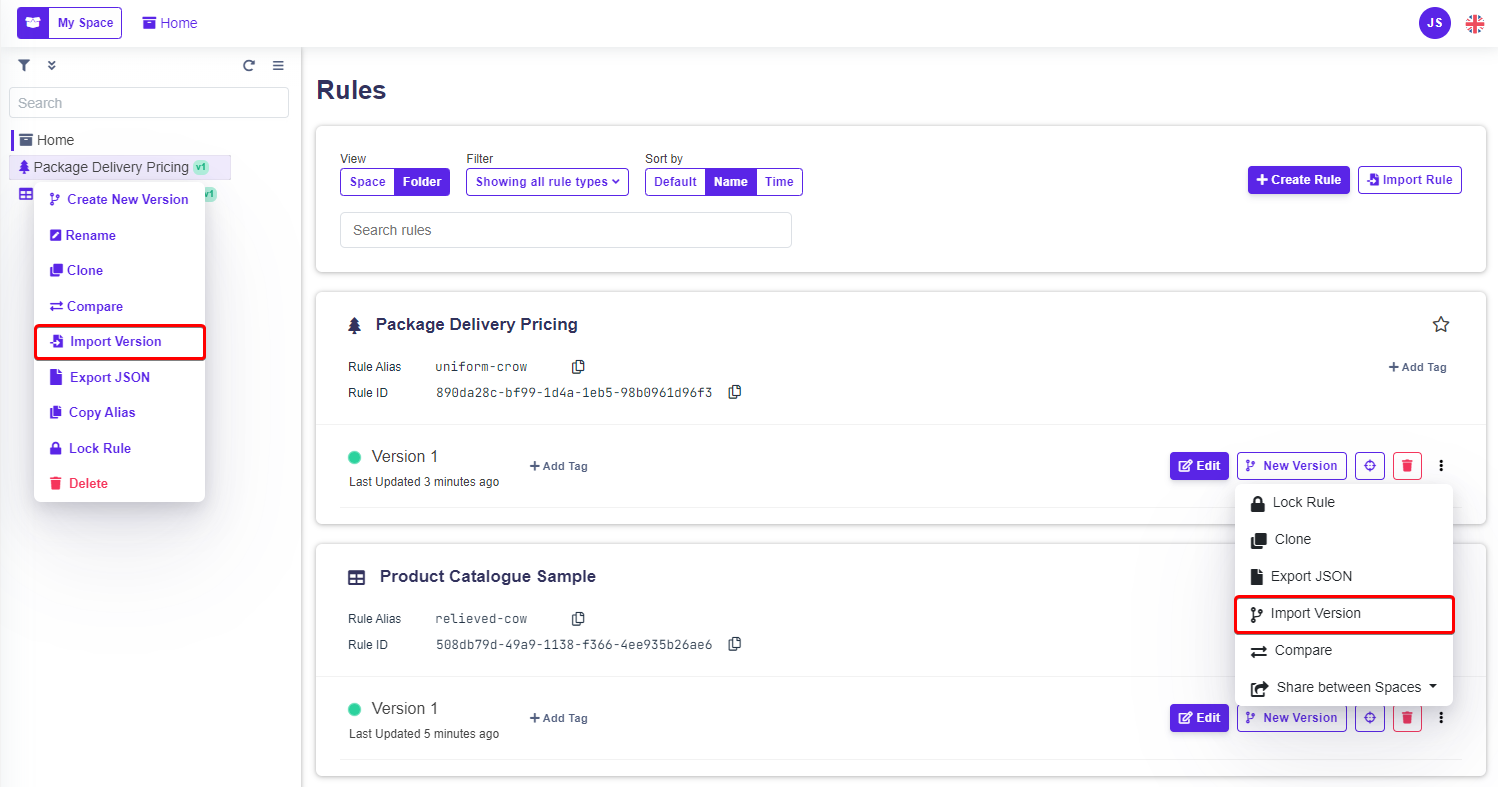
#### 2. Importing a new version of an existing Rule
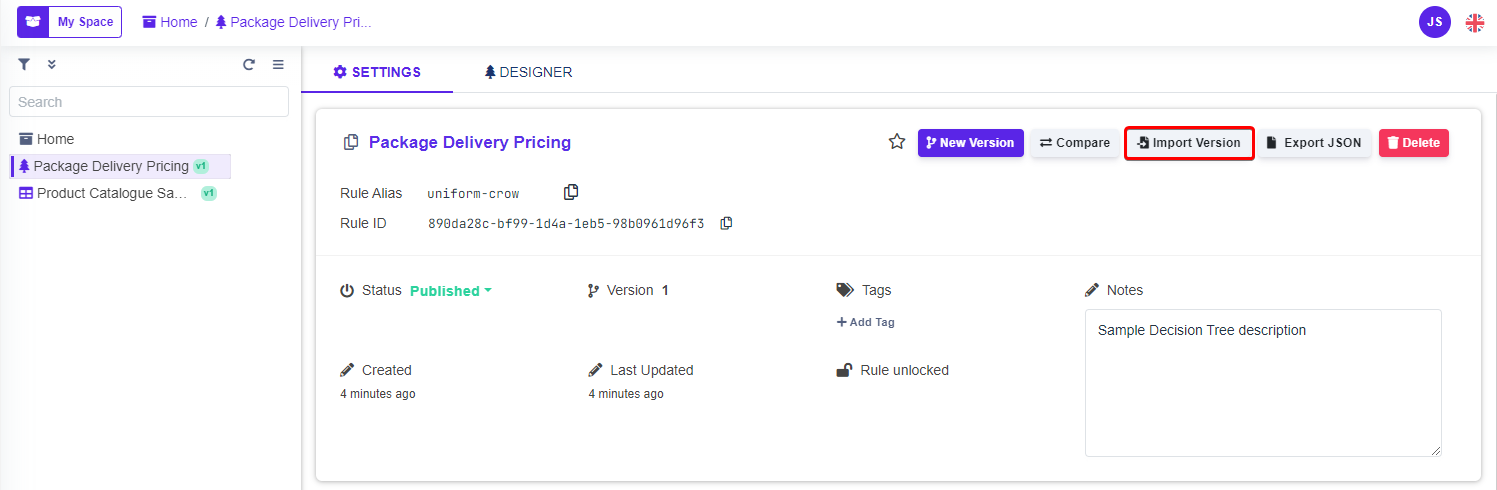
To import a new version of an existing Rule
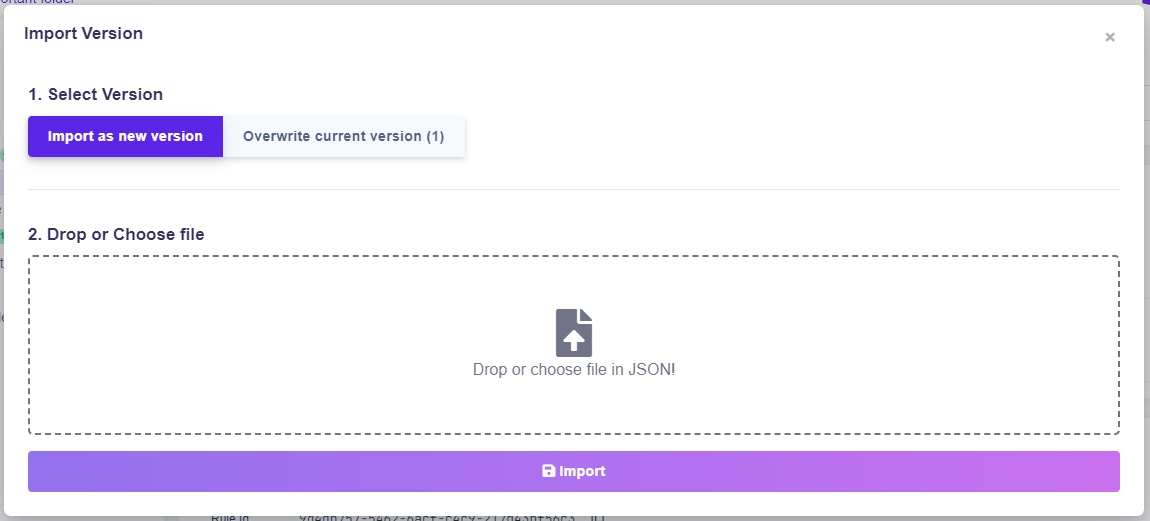
You will be prompted with the following window.
First, select whether you would like:
* To import the rule as a new version of the existing rule.
or
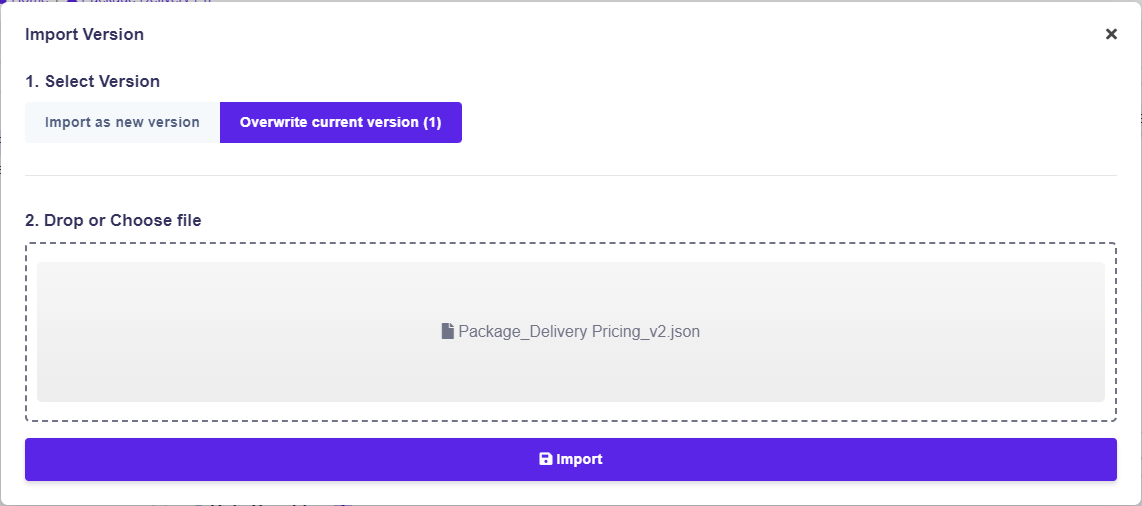
* To **overwrite** the latest version of the existing rule.
{% hint style="danger" %}
Overwriting the latest version **cannot be undone**. The overwritten version will be permanently lost.
{% endhint %}
After selecting the method of import, drag and drop your rule file into the dashed area or click within it to open a File Explorer. For Decision Trees, the rule file can only have the format of JSON.
Once your rule file has been selected, click the **Import** button.
---
# Agent Instructions
This documentation is published with GitBook. GitBook is the documentation platform designed so that both humans and AI agents can read, navigate, and reason over technical content effectively. Learn more at gitbook.com.
## Querying This Documentation
If you need additional information that is not directly available in this page, you can query the documentation dynamically by asking a question.
Perform an HTTP GET request on the current page URL with the `ask` query parameter, and the optional `goal` query parameter:
```
GET https://docs.decisionrules.io/doc/v1/decision-trees/import-and-export-rule/import-decision-tree.md?ask=&goal=
```
`ask` is the immediate question: it should be specific, self-contained, and written in natural language.
`goal` is optional and describes the broader end goal you are ultimately trying to accomplish on behalf of the user. GitBook uses it to tailor the answer towards what is most useful for that goal.
The response will contain a direct answer to the question and relevant excerpts and sources from the documentation.
Use this mechanism when the answer is not explicitly present in the current page, you need clarification or additional context, or you want to retrieve related documentation sections.