> For the complete documentation index, see [llms.txt](https://docs.decisionrules.io/doc/llms.txt). Markdown versions of documentation pages are available by appending `.md` to page URLs; this page is available as [Markdown](https://docs.decisionrules.io/doc/~/changes/1017/access/invitations-and-permissions.md).
# Invitations & Permissions
Managing access to your space starts with inviting users and assigning them the appropriate level of permission. This is done through **roles**, which define what a user can see and do within a space.
***
## Inviting Users to a Space
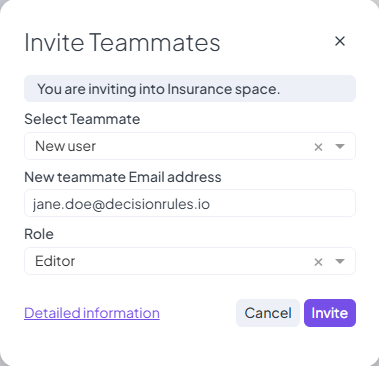
You can invite new users to your space using invite button located at the top right corner. During the invitation process, you’ll assign the user a **role**, which determines their access level. User's role can be changed in the future.
Invite Member to Private Space
Roles can be:
* **Predefined** – Common roles like Viewer, Editor, or Admin with built-in permissions.
* **Custom** – You can create your own roles with specific permission sets tailored to your workflow.
The assigned role can be changed at any time after the invitation is sent or once the user joins the space.
> For more about managing roles:
>
> * See [Access](/doc/~/changes/1017/space/access.md) for **private spaces**
> * See [Space Roles](/doc/~/changes/1017/organization/space-roles.md) and [Members](/doc/~/changes/1017/organization/members.md) for **organization spaces**
***
## How Invitations Work
Once a user is invited:
* An **invitation email** is sent to their inbox.
* A **pending invitation record** is shown on the Space Detail screen.
* If needed, you can **resend the invitation** manually.
To complete the process, the invited user must:
1. Open the invitation email and click the link.
2. Log in or create a new account.
3. They are then automatically redirected to the space they were invited to.
This ensures a secure and trackable way to onboard new collaborators into your space with the correct permissions from the start.
---
# Agent Instructions
This documentation is published with GitBook. GitBook is the documentation platform designed so that both humans and AI agents can read, navigate, and reason over technical content effectively. Learn more at gitbook.com.
## Querying This Documentation
If you need additional information that is not directly available in this page, you can query the documentation dynamically by asking a question.
Perform an HTTP GET request on the current page URL with the `ask` query parameter, and the optional `goal` query parameter:
```
GET https://docs.decisionrules.io/doc/~/changes/1017/access/invitations-and-permissions.md?ask=&goal=
```
`ask` is the immediate question: it should be specific, self-contained, and written in natural language.
`goal` is optional and describes the broader end goal you are ultimately trying to accomplish on behalf of the user. GitBook uses it to tailor the answer towards what is most useful for that goal.
The response will contain a direct answer to the question and relevant excerpts and sources from the documentation.
Use this mechanism when the answer is not explicitly present in the current page, you need clarification or additional context, or you want to retrieve related documentation sections.