> For the complete documentation index, see [llms.txt](https://docs.decisionrules.io/doc/llms.txt). Markdown versions of documentation pages are available by appending `.md` to page URLs; this page is available as [Markdown](https://docs.decisionrules.io/doc/rules/lookup-table/data-import-and-export.md).
# Data Import & Export
Lookup Tables support importing and exporting data in multiple formats, making it easy to manage large datasets and integrate with external systems like Microsoft Excel or Google Sheets.
### Import Formats
| Format | Best For |
| -------- | --------------------------------------------------- |
| **JSON** | Full table import/export with metadata |
| **XLSX** | Full table import/export with metadata, Excel users |
| **CSV** | Quick data imports, simple data structures |
### CSV Import
The CSV import feature allows you to quickly populate or update your Lookup Table with data from a CSV file.
#### Accessing CSV Import
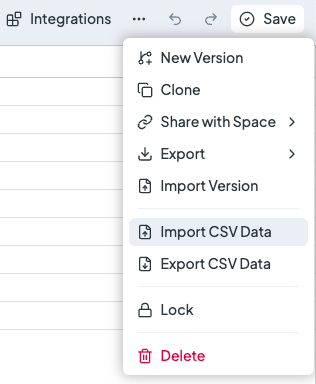
Where to find CSV Import/Export
1. Open your Lookup Table in the Designer
2. Click the three dots next to the Save button
3. Select **Import CSV Data** dropdown
4. The import modal will appear

#### Import Process
**Step 1: Select File**
Drag and drop a CSV file onto the dropzone, or click to browse and select a file.
**Supported file requirements:**
* File extension: `.csv`
* Encoding: UTF-8 (recommended) or other common encodings
* Delimiters: Comma (`,`) or semicolon (`;`) are automatically detected
**Step 2: Preview and Validate**
After selecting a file, the system displays a preview showing:
* **Detected columns**: Headers found in the CSV
* **Column mapping**: How CSV columns map to existing table columns
* **New columns**: Columns in the CSV that don't exist in the table
* **Primary key status**: Whether the CSV includes the primary key column

**Column Status Indicators:**
The system automatically matches CSV headers to existing columns by the **column name**
| Status | Description |
| ----------------------- | -------------------------------------------------- |
| **Existing** | Column matches an existing table column |
| **New** | Column will be created (if auto-create is enabled) |
| **Skipped** | Column not found and won't be imported |
| **Primary Key Missing** | Required primary key column not found |
**Step 3: Configure Options**
**Auto-create Columns**
When enabled, columns in the CSV that don't exist in the table will be automatically created. The new columns will use the CSV header as both the name and alias.
{% hint style="info" %}
New columns are added to the right side of the table, after existing columns.
{% endhint %}
**Step 4: Import**
Click **Import** to process the file. The import behavior:
* **New rows**: Rows with primary keys not in the table are added
* **Existing rows**: Rows with matching primary keys are updated (merged)
* **Preserved data**: Existing columns not in the CSV retain their values
#### Merge Behavior
CSV import uses **merge** (append) mode, which means:
```
Existing Table:
| id | name | price |
|-----|-------|-------|
| 001 | Apple | 1.00 |
| 002 | Banana| 0.50 |
CSV Import:
| id | name | stock |
|-----|--------|-------|
| 001 | Apple | 100 |
| 003 | Cherry | 2.00 |
Result:
| id | name | price | stock |
|-----|--------|-------|-------|
| 001 | Apple | 1.00 | 100 | ← Updated with new 'stock' value
| 002 | Banana | 0.50 | null | ← Preserved (not in CSV)
| 003 | Cherry | null | 2.00 | ← New row added
```
#### Validation and Warnings
The import process validates your data and displays warnings for:
**Primary Key Issues:**
* **Missing primary key column**: Import cannot proceed
* **Empty primary key values**: Rows will be skipped
* **Duplicate primary keys in CSV**: Only first occurrence is imported

**Row Limit:**
* **Exceeds plan limit**: Import blocked if result would exceed your row limit
#### Best Practices for CSV Import
1. **Always include the primary key column** in your CSV
2. **Use consistent headers** that match your existing column **names**
3. **Clean your data** before import to avoid validation issues
4. **Check the preview carefully** before confirming the import
***
### XLSX Import
For full table import including metadata and settings, use the XLSX format.
#### XLSX File Structure
An XLSX file for Lookup Tables contains two sheets:
**Settings Sheet**
| Field | Description |
| ------------------ | -------------------------------------------- |
| Export Version | Always `2` |
| Name | Name of the Lookup Table |
| Rule Alias | Alias for API access |
| Version | Version number |
| Status | `published` or `pending` |
| Primary Key Column | Alias of the primary key column |
| Input Model | JSON structure (if applicable) |
| Output Model | JSON structure (if applicable) |
| Rule ID | Unique identifier (auto-generated on import) |
| Created | Creation date in ISO 8601 format |
| Tags | Array of tags |
| Note | Description of the table |
**Table Sheet**
Contains the actual data with:
* First row: Column names
* Second row: Column aliases
* Remaining rows: Data
#### Importing XLSX
1. Navigate to **Import** in the rule list or sidebar
2. Select your XLSX file
3. Choose **Create New** or **Overwrite Existing**
4. Review the import summary
5. Click **Import**
#### Import Modes
| Mode | Behavior |
| ---------------------- | ------------------------------------------------- |
| **Create New** | Creates a new Lookup Table with the imported data |
| **Create New Version** | Adds as a new version of an existing table |
| **Overwrite** | Replaces the current version entirely |
***
### CSV Export
Export your Lookup Table data as a CSV file for use in external applications.
#### Exporting to CSV
1. Open your Lookup Table
2. Click **Export Data** in the toolbar
3. The file downloads automatically
#### CSV Export Format
The exported CSV includes:
* Header row with column names
* All data rows
* Comma-separated values
**Example output:**
```csv
Product Code,Product Name,Price,Category
SKU-001,Widget Pro,29.99,Electronics
SKU-002,Gadget Plus,49.99,Electronics
SKU-003,Tool Basic,15.00,Hardware
```
***
### XLSX Export
Export your complete Lookup Table including metadata for backup or editing in Excel.
#### Exporting to XLSX
1. Open your Lookup Table
2. Click **Export** in the toolbar
3. Select **XLSX**
4. The file downloads automatically
#### XLSX Export Contents
The exported file contains:
1. **Settings Sheet**: All metadata and configuration
2. **Table Sheet**: Complete data with column definitions
#### Editing in Excel
You can edit the exported XLSX file in Microsoft Excel or Google Sheets:
1. Export your Lookup Table
2. Open in Excel/Sheets
3. Modify the **Table** sheet data
4. Keep the **Settings** sheet unchanged (or update metadata as needed)
5. Save as XLSX
6. Re-import into DecisionRules
{% hint style="warning" %}
Do not change the structure of the Settings sheet or modify column aliases unexpectedly, as this may cause import errors.
{% endhint %}
#### Primary Key Highlighting
In the exported XLSX, the primary key column is highlighted with a distinct background color for easy identification.
***
### Troubleshooting
#### Common Import Errors
| Error | Cause | Solution |
| --------------------------------- | --------------------------------------- | -------------------------------------------- |
| "Primary key column required" | CSV missing the primary key column | Add the primary key column to your CSV |
| "Duplicate primary keys detected" | Multiple rows have the same primary key | Remove duplicates from your CSV |
| "Row limit exceeded" | Import would exceed plan limit | Upgrade plan or reduce data size |
| "Invalid file format" | File is not a valid CSV/XLSX | Check file format and encoding |
| "Unknown columns" | CSV has columns not in table | Enable auto-create or remove unknown columns |
#### Encoding Issues
If you see garbled characters after import:
1. Ensure your CSV is UTF-8 encoded
2. In Excel, use "Save As" → "CSV UTF-8"
3. In Google Sheets, download as CSV (automatically UTF-8)
---
# Agent Instructions
This documentation is published with GitBook. GitBook is the documentation platform designed so that both humans and AI agents can read, navigate, and reason over technical content effectively. Learn more at gitbook.com.
## Querying This Documentation
If you need additional information that is not directly available in this page, you can query the documentation by asking a question.
Perform an HTTP GET request on the following URL with the `ask` and `goal` query parameters:
```
GET https://docs.decisionrules.io/doc/rules/lookup-table/data-import-and-export.md?ask=&goal=
```
`ask` is the immediate question: it should be specific, self-contained, and written in natural language.
`goal` is what the user is ultimately trying to achieve, the reason they need the answer. Sharing it helps GitBook give you a better, more relevant answer. A goal is most helpful when it describes the outcome the user wants rather than restating the question. For example, with `ask=how do I create an API token`, a goal like `automate deployments from our CI pipeline` lets GitBook tailor the answer to that use case.
The response will contain a direct answer to the question and relevant excerpts and sources from the documentation.
Use this mechanism when the answer is not explicitly present in the current page, you need clarification or additional context, or you want to retrieve related documentation sections.